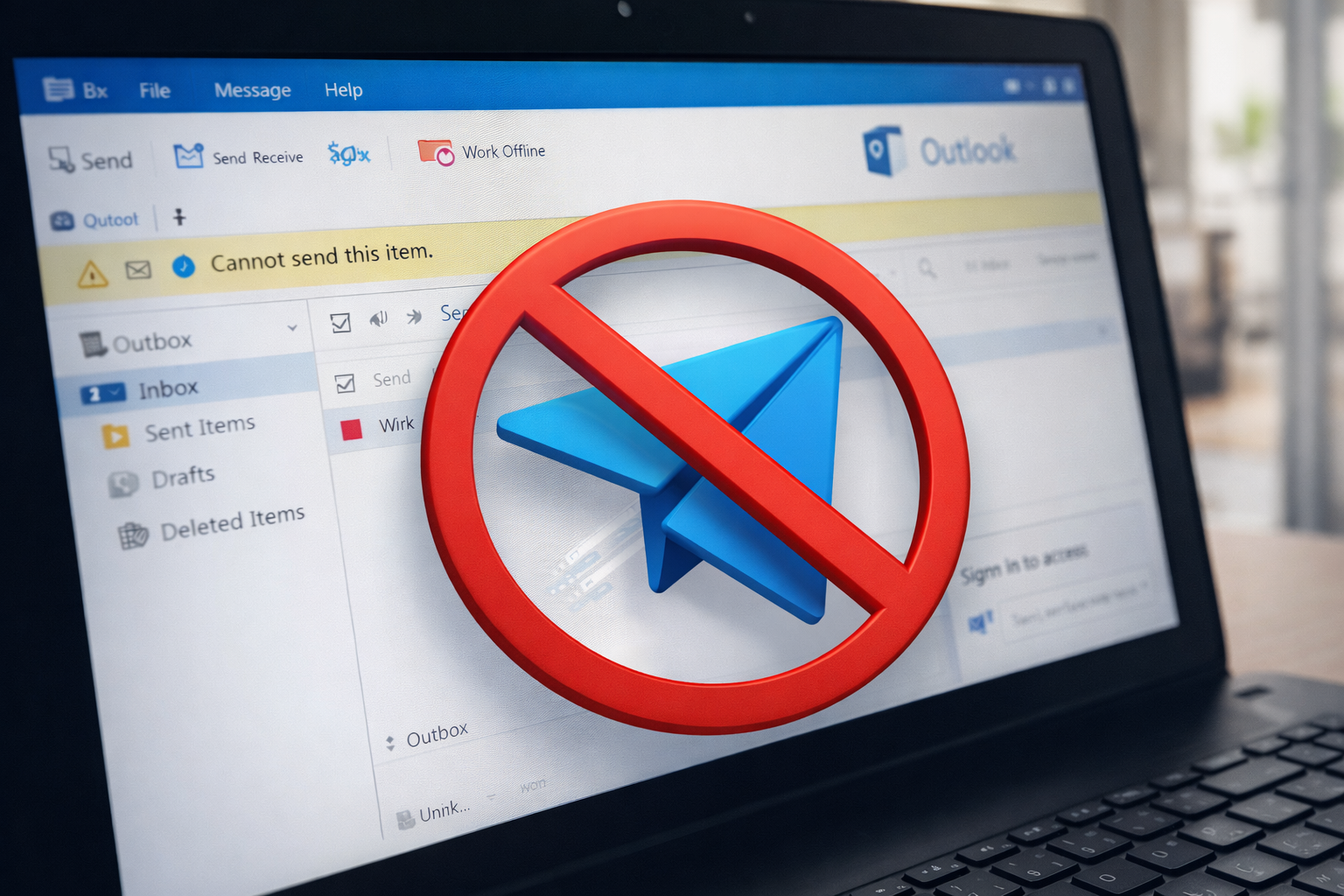
Why Is Outlook Not Sending Emails (and How Do I Fix It Fast)?
By AstroTech
When Outlook won’t send emails, it can stall quotes, invoices, approvals, and customer replies—fast. The good news is that many causes are simple
(like “Work Offline,” a stuck Outbox message, or a sign-in prompt you didn’t see). Below are safe fixes you can try right now and the clear signs
it’s time to hand this off to AstroTech so you’re not losing half a day to trial-and-error.
Direct Answer (fast overview):
Outlook usually won’t send because it’s in Work Offline mode, a message is stuck in the Outbox (often due to a large attachment),
your account needs you to sign in again, your mailbox is full, or there’s a server/connection issue. Start by confirming internet access,
turning off Work Offline, sending a simple test email with no attachment, and clearing stuck Outbox items. If multiple users are affected
or messages are time-sensitive, professional troubleshooting is the safest next step.
Why this happens
- Work Offline is enabled: Outlook looks normal but won’t send anything.
- A stuck Outbox message: one bad message can block everything behind it.
- Attachments are too large: large PDFs/photos/video files often fail quietly.
- Sign-in or password prompt: Outlook may be waiting for you to re-authenticate (especially with Microsoft 365).
- Mailbox is at capacity: sending can fail when storage is full (common with shared mailboxes too).
- Add-ins interfering: PDF tools, CRM plug-ins, and security add-ons can disrupt sending.
- Connection/VPN issues: Wi-Fi drops or VPN failures can interrupt send/receive.
- Server-side problems: mail provider issues or an outage can prevent sending.
Quick fixes you can try now (safe only)
1) Confirm you have internet (and it’s stable)
- Open a browser and load 2–3 websites.
- If websites don’t load, this is likely a network/ISP issue, not Outlook.
- If websites load, continue below.
2) Check and turn off “Work Offline”
In Outlook (classic Windows), go to Send/Receive and look for Work Offline. If it’s highlighted, click it to turn it off.
If you see “Working Offline” in the bottom status bar, this is a top suspect.
3) Send a simple test email (no attachment)
Do this:
- Email yourself a short message with a simple subject.
- No attachments.
- If this sends, your issue is likely a specific message/attachment, not your whole account.
4) Clear the Outbox (most common “jam”)
Open the Outbox. If you see an email stuck on “Sending”:
- Open the stuck email (if it will open).
- Remove the attachment (or reduce it).
- Save the email as a draft and try sending again.
If it won’t open, close Outlook completely, wait 10 seconds, reopen, then try again. The goal is to remove the “stuck” item so the rest can move.
Quick clue:
If one message is blocking the Outbox, Outlook may look “broken” even though your account is fine. Clearing the queue often restores normal sending immediately.
5) Restart Outlook (and restart the computer if needed)
Close Outlook fully, wait a few seconds, then reopen and test sending again. If Outlook has been open for days, a restart can clear hung processes and pending sign-in states.
6) Check for hidden sign-in prompts
- Look for a sign-in window behind Outlook.
- If you use multi-factor authentication, check your phone for an approval prompt.
- If your password changed recently, Outlook may need the updated sign-in.
7) Verify mailbox storage isn’t full
If your mailbox (or a shared mailbox) is full, Outlook can fail to send. Safe steps:
- Delete a few large emails you no longer need (especially with big attachments).
- Empty Deleted Items.
- Try the simple test email again.
8) Use Outlook Web as a quick workaround
If you have Microsoft 365/Exchange, try sending from Outlook on the web (browser). If web email sends but desktop Outlook doesn’t, it usually points to an Outlook app/profile issue,
not an outage. This is useful for staying productive while the root cause is fixed.
When it becomes a bigger business risk
Outlook not sending becomes a business risk when it affects multiple people, blocks revenue-critical communications, or signals a broader access/security issue.
- Multiple users can’t send (likely server/DNS/authentication/provider issue).
- Customer replies, quotes, or invoices are delayed (direct revenue impact).
- Shared mailboxes are stuck (Sales@, Billing@, Support@).
- Repeated password prompts (account sign-in loop, policy change, or MFA issue).
- Outbox backlog grows (missed deadlines and confusion about what actually went out).
- Suspicious behavior (unexpected messages in Sent Items, weird forwarding rules, or unusual sign-in prompts).
How AstroTech fixes this
- Fast isolation: confirm whether the problem is Outlook, the mailbox, or the mail provider/service.
- Outbox + attachment fixes: clear stuck queues safely and prevent repeat failures.
- Microsoft 365 sign-in troubleshooting: resolve authentication loops and hidden prompts without risky changes.
- Mailbox health checks: storage limits, shared mailbox behavior, and delivery settings.
- Stability checks: identify network/VPN factors causing intermittent send failures.
- Prevention: reduce add-in conflicts and recurring “won’t send” incidents.
FAQ
Why can I receive emails but not send them?
This often points to a sending-specific issue like authentication, a stuck Outbox, mailbox limits, or a security policy blocking outgoing mail. If webmail can send but Outlook can’t, it’s likely an Outlook app/profile issue.
Why does Outlook get stuck on “Sending…”?
Usually one message is jammed in the Outbox—commonly due to a large attachment or a corrupted message. Clearing or moving that email typically restores normal sending.
Should I reinstall Outlook?
Usually not as a first step. Reinstalling can be time-consuming and doesn’t always address the real cause. It’s better to try the safe steps above or have a technician verify the root problem first.
Is this a Microsoft 365 outage?
If multiple users are affected and Outlook on the web also can’t send, it may be service-side. AstroTech can quickly confirm whether the issue is upstream or inside your environment.
When should I call AstroTech?
If sending is blocked for multiple people, the Outbox keeps re-sticking, your emails are time-sensitive, or anything looks suspicious (unexpected Sent messages or sign-in prompts), AstroTech can get you back to reliable sending fast.
